Working with a specific static site generator?
Customize CloudCannon's documentation to suit your SSG.
Great! We'll show you documentation relevant to .
You can change this any time using the dropdown in the navigation bar.
A Rich Text input lets your team members write markup content directly into your data files or front matter. Rich Text inputs have a text area for your content and a WYSIWYG toolbar for formatting your content.
You can configure the WYSIWYG toolbar for a Rich Text input the same way you configure the toolbar for the Content Editor. For more information, please read our documentation on configuring your Rich Text editors.
There are two types of Rich Text input:
- HTML
- Markdown
For each input, you can configure whether your team members are allowed to resize the text area, the initial height of the text area, the upload paths or filenames for any assets uploaded through this input, and how CloudCannon handles empty values. You can also use the general configuration options available for all inputs.
HTML#
The HTML Rich Text input provides an editing interface for HTML markup content.
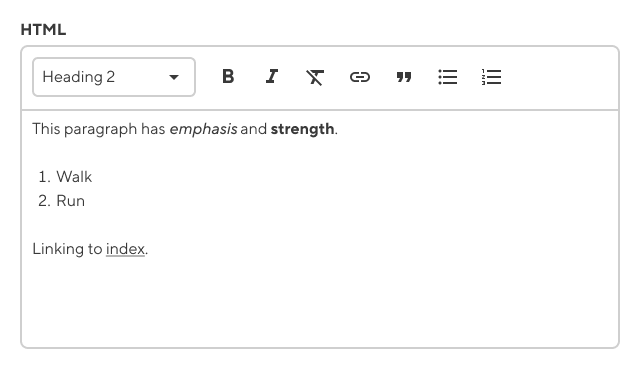
You can configure a HTML input using the type key with the value html. Define the type key under your input key name within _inputs. For more information, please read our documentation on configuring your inputs.
_inputs:
  content:
    type: html
All inputs are defined under the _inputs key, regardless of where they are in the configuration cascade.
The Rich Text input is called content.
The value of the type key determines the input type. This is an html Rich Text input.
{
  "_inputs": {
    "content": {
      "type": "html"
    }
  }
}
All inputs are defined under the _inputs key, regardless of where they are in the configuration cascade.
The Rich Text input is called content.
The value of the type key determines the input type. This is an html Rich Text input.
module.exports = {
  _inputs: {
    content: {
      type: "html"
    }
  }
};
All inputs are defined under the _inputs key, regardless of where they are in the configuration cascade.
The Rich Text input is called content.
The value of the type key determines the input type. This is an html Rich Text input.
Once configured, the HTML Rich Text input will appear in the Data Editor or sidebar of the Visual or Content Editor when you add it to a data file or the front matter of a markup file.
---
content: |
  <p>This paragraph has <em>emphasis</em> and <strong>strength</strong>.</p>
  <ol>
    <li>Walk</li>
    <li>Run</li>
  </ol>
  <p>Linking to <a href="/">index</a>.</p>
---
Markdown#
The Markdown Rich Text input provides an editing interface for Markdown markup content.
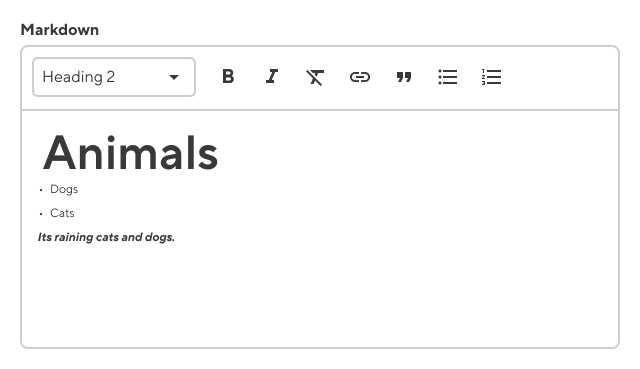
You can configure a Markdown input using the type key with the value markdown. Define the type key under your input key name within _inputs. For more information, please read our documentation on configuring your inputs.
_inputs:
  top_copy:
    type: markdown
All inputs are defined under the _inputs key, regardless of where they are in the configuration cascade.
The Rich Text input is called top_copy.
The value of the type key determines the input type. This is a markdown Rich Text input.
{
  "_inputs": {
    "top_copy": {
      "type": "markdown"
    }
  }
}
All inputs are defined under the _inputs key, regardless of where they are in the configuration cascade.
The Rich Text input is called top_copy.
The value of the type key determines the input type. This is a markdown Rich Text input.
module.exports = {
  _inputs: {
    top_copy: {
      type: "markdown"
    }
  }
};
All inputs are defined under the _inputs key, regardless of where they are in the configuration cascade.
The Rich Text input is called top_copy.
The value of the type key determines the input type. This is a markdown Rich Text input.
Once configured, the Markdown Rich Text input will appear in the Data Editor or sidebar of the Visual or Content Editor when you add it to a data file or the front matter of a markup file.
---
top_copy: |
  # Animals

  - Dogs
  - Cats

  ***Its raining cats and dogs.***
---
You may need to convert the Markdown value into HTML to use it on your site.
specific doc
In your layout, use the markdownify function to render Markdown from front matter.
{% if page.markdown %}
  {{ page.markdown | markdownify }}
{% endif %}
specific doc
In your layout, use the markdownify function to render Markdown from front matter.
{{ with .Params.markdown }}
  {{ . | markdownify }}
{{ end }}
specific doc
Eleventy doesn't have a markdownify shortcode or filter by default, so using the value from this input depends on your specific implementation.
specific doc
SSGs vary in processing Markdown, so using the value from this input depends on your specific implementation.
For more information, please read our documentation on configuring your markdown engine.
Options#
You can configure Rich Text inputs using the options key under your input key, inside of _inputs.
_inputs:
  description:
    type: markdown
    options:
      allow_resize: false
      empty_type: 'null'
      initial_height: 200
      paths:
        dam_uploads: assets/images
        dam_uploads_filename: '[filename].[extension]'
{
  "_inputs": {
    "description": {
      "type": "markdown",
      "options": {
        "allow_resize": false,
        "empty_type": "null",
        "initial_height": 200,
        "paths": {
          "dam_uploads": "assets/images",
          "dam_uploads_filename": "[filename].[extension]"
        }
      }
    }
  }
}[_inputs.description]
type = "markdown"
[_inputs.description.options]
allow_resize = false
empty_type = "null"
initial_height = 200
[_inputs.description.options.paths]
dam_uploads = "assets/images"
dam_uploads_filename = "[filename].[extension]"
Rich Text inputs have the following options available:
This key toggles the resize handler to vertically resize the text area of the input. Defaults to true.
This key defines the initial height of the input text area in pixels (px). Defaults to 320. Supports values between 135 and 1200.
This key enables you to define the default paths for your assets. Each path is relative to global site source. If undefined, the paths default to those configured in the configuration file. The following nested keys are available:
dam_staticdam_uploadsdam_uploads_filenamestaticuploadsuploads_filenameuploads_use_relative_paths
This key enables you to define the path for the location of statically copied assets for DAM files.
This key enables you to define the path for the default location of newly uploaded DAM files.
You can use dynamic placeholders for uploads and dam_uploads. For more information, please read our documentation on adjusting file upload paths.
This key enables you to define the name of a file, after uploading it to a DAM.
This key enables you to define the path for the location of statically copied assets.
This key enables you to define the path for the default location of newly uploaded files.
You can use dynamic placeholders for uploads and dam_uploads. For more information, please read our documentation on adjusting file upload paths.
This key enables you to define the name of a file, after uploading it.
This key enables you to use a file path relative to the current file when uploading through this input. File inputs in data files or front matter will also use relative file paths when selecting an existing file.
This key determines how CloudCannon handles an empty value. This key does not apply to existing empty values.
Value must be one of the following:
string- an empty value for this input will be stored as "".null- an empty value for this input will be stored as a null value (default). This does not apply to TOML files.
Unconfigured Rich Text inputs#
In some cases, CloudCannon can still detect a Rich Text input even if you have not configured it.
CloudCannon will interpret any unconfigured input with the key name html or markdown, or that ends in _html or _markdown, as a Rich Text input.
---
sidebar_html: |
  <p>This paragraph has <em>emphasis</em> and <strong>strength</strong>.</p>
  <ol>
    <li>Walk</li>
    <li>Run</li>
  </ol>
  <p>Linking to <a href="/">index</a>.</p>
---
---
markdown: |
  # Animals

  - Dogs
  - Cats

  ***Its raining cats and dogs.***
---
This behavior is convenient if you have simple inputs, or do not want to configure inputs. It is also beneficial for new websites on CloudCannon where you have yet to create any CloudCannon-specific configuration.
We recommend configuring your inputs for greater control over their functionality and appearance.
Valid values#
Rich Text inputs can have multiple valid values for empty, single line, and multiline content. Here are some examples of valid values for the key html. These work for both HTML and Markdown inputs.
Empty/null value:
html:
Any valid string (quoted or unquoted):
html: ""html: ''html: any stringhtml: "any string"html: 'any string'
Any valid multiline string:
-
html: >
multiline string -
html: >-
multiline string -
html: >+
multiline string -
html: |
multiline string -
html: |-
multiline string -
html: |+
  multiline string
Any valid string:
html = ""html = "any string"
Any valid escaped string:
html = ''html = 'any string (literal)'
Any valid multiline string:
-
html = """
multiline string""" -
html = """\
  multiline string (trimmed) \
""" -
html = '''
  literal multiline string'''
Null value:
"html": null
Any valid string:
"html": """html": "any string"
Any valid multiline string:
"html": "multiline \n string"